ऐंड्रॉयड पर यूं डाउनलोड करें यूट्यूब विडियो, जानें तरीका
Download YouTube videos on Android, learn how
Many times it happens that we are in a place where there is no better connectivity. In such a situation, if we want to watch a video, then the download feature of YouTube is useful. Let you know about the YouTube download feature.

People all over the world use Google's YouTubeapp to watch videos .Can say that video means YouTube.Telecom companies are offering unlimited data to Indian customers. But for some time, telecom companies have been continuously increasing the prices of their recharge packs. Also, it is not necessary to have better internet everywhere, everywhere. In such a situation, the download feature of YouTube, where the video can be downloaded offline and can be viewed later when you wish. There is no need of internet to watch videos after downloading on YouTube.
The video download feature on YouTube is available on both iOS and Android apps. But this feature has not yet arrived on the desktop. Today we will tell you how you can download YouTube videos on Android app .
1 . Open the YouTube app and go to the video you want to download
2. In the option below the video, you will see the option to download on the second number from the right side
3. Click on the download option. After this, you will see the option of video quality. It will have three options- Low, Medium and HD. You can choose the option of your choice. You can click on 'Remember my settings' so that the next time your video is downloaded at once.
4. Now go to the Library option to view your downloaded video.

6. Here you will see all the downloaded videos together
7. If you want to delete a video, click on the 3 dot in front of the video and you will see the option 'Delete from downloads' .

Edited By Ankit choudhary
Many times it happens that we are in a place where there is no better connectivity. In such a situation, if we want to watch a video, then the download feature of YouTube is useful. Let you know about the YouTube download feature.
NBT
New Delhi
People all over the world use Google's YouTube app to watch videos . Can say that video means YouTube. Telecom companies are offering unlimited data to Indian customers. But for some time, telecom companies have been continuously increasing the prices of their recharge packs. Also, it is not necessary to have better internet everywhere, everywhere. In such a situation, the download feature of YouTube, where the video can be downloaded offline and can be viewed later when you wish. There is no need of internet to watch videos after downloading on YouTube.
The video download feature on YouTube is available on both iOS and Android apps. But this feature has not yet arrived on the desktop. Today we will tell you how you can download YouTube videos on Android app .
1 . Open the YouTube app and go to the video you want to download
2. In the option below the video, you will see the option to download on the second number from the right side
3. Click on the download option. After this, you will see the option of video quality. It will have three options- Low, Medium and HD. You can choose the option of your choice. You can click on 'Remember my settings' so that the next time your video is downloaded at once.
4. Now go to the Library option to view your downloaded video.
NBT
video-download
5. Tap on Downloads
6. Here you will see all the downloaded videos together
7. If you want to delete a video, click on the 3 dot in front of the video and you will see the option 'Delete from downloads' .
74457475
Techno Camon 15 Pro: How powerful is the cheapest phone with a pop-up camera?
You should note that the videos downloaded on YouTube will remain in the app as long as the phone has an internet connection for 29 days. However, the downloaded video can only be played continuously for 48 hours. After this you have to connect your mobile to Wi-Fi or Internet every 48 hours. By doing this, the app will be able to know whether there is any change in the video or whether the video is still available for offline view. If a video is not available for offline playback, it will be removed from your device the next time it is synced. YouTube videos can be downloaded via Wi-Fi and mobile data. Please tell that not all videos are available for offline view on YouTube.
Those who lack internal storage in the phone can also save the video in their SD card. For this follow the method given below.
Go to your profile first
Then tap on settings
Then go to downloads
Toggle the 'Use SD card' option shown here
ऐंड्रॉयड पर यूं डाउनलोड करें यूट्यूब विडियो, जानें तरीका,Download YouTube videos on Android, learn
दुनियाभर में लोग विडियो देखने के लिए सबसे ज्यादा इस्तेमाल गूगल के यूट्यूब ऐप का करते हैं। कह सकते हैं कि विडियो मतलब यूट्यूब है। भारतीय ग्राहकों को टेलिकॉम कंपनियां अनलिमिटेड डेटा का ऑफर दे रही हैं। लेकिन पिछले कुछ समय से टेलिकॉम कंपनियां लगातार अपने रिचार्ज पैक्स की कीमतें भी बढ़ा रही हैं। इसके अलावा जरूरी नहीं कि हर वक्त, हर जगह बेहतर इंटरनेट मिले। ऐसे में काम आता है यूट्यूब का डाउनलोड फीचर, जहां विडियो को ऑफलाइन डाउनलोड कर बाद में जब मर्जी देखा जा सकता है। यूट्यूब पर विडियो डाउनलोड करने के बाद देखने के लिए इंटरनेट की जरूरत भी नहीं होती।
यूट्यूब पर विडियो डाउनलोड करने का फीचर आईओएस और ऐंड्रॉयड दोनों ऐप पर उपलब्ध है। लेकिन अभी तक डेस्कटॉप पर यह फीचर नहीं आया है। आज हम आपको बताएंगे कि आप किस तरह ऐंड्रॉयड ऐप पर यूट्यूब विडियो डाउनलोड कर सकते हैं।
1. यूट्यूब ऐप ओपन करें और उस विडियो पर जाएं जिसे आप डाउनलोड करना चाहते हैं
2. विडियो के नीचे दिए ऑप्शन में दांयीं तरफ से दूसरे नंबर पर आपको डाउनलोड का विकल्प दिखेगा
3. डाउनलोड के ऑप्शन पर क्लिक करें। इसके बाद आपको विडियो क्वॉलिटी का विकल्प दिखेगा। इसमें तीन विकल्प- लो, मीडियम और एचडी होंगे। आप अपनी मर्जी का विकल्प चुन सकते हैं। आप 'Remember my settings' पर क्लिक कर सकते हैं ताकि अगली बार आपका विडियो एक बार में डाउनलोड हो जाए।
4. अब डाउनलोड किए गए अपने विडियो को देखने के लिए Library ऑप्शन में जाएं।
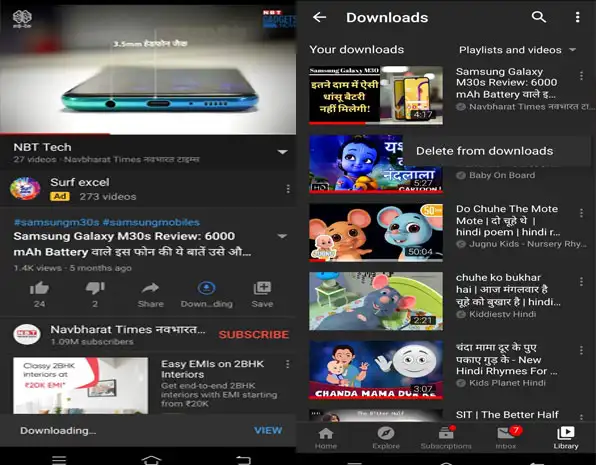
5. Downloads पर जाकर टैप करें
6. यहां आपको डाउनलोड किए गए सभी विडियो एक साथ दिख जाएंगे
7. अगर आप कोई विडियो डिलीट करना चाहते हैं तो विडियो के सामने बने 3 डॉट पर क्लिक करें और आपको 'Delete from downloads' विकल्प दिख जाएगा।
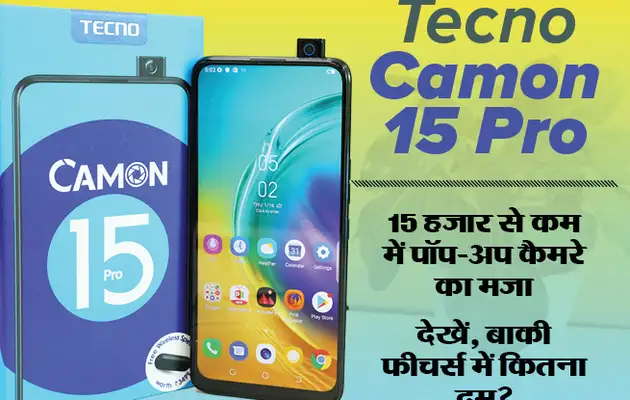 टेक्नो कैमन 15 प्रो: पॉप-अप कैमरे वाला सबसे सस्ता फोन कितना दमदार?
आपको ध्यान रखना चाहिए कि यूट्यूब पर डाउनलोड किए गए विडियो तभी तक ऐप में रहेंगे जब तक कि फोन में 29 दिनों के लिए इंटरनेट कनेक्शन हो। हालांकि, डाउनलोड किए गए विडियो को लगातार 48 घंटे तक ही प्ले किया जा सकता है। इसके बाद आपको अपने मोबाइल को हर 48 घंटे पर वाई-फाई या इंटरनेट से कनेक्ट करना होगा। ऐसा करने से ऐप यह जान पाएगा कि विडियो में कोई चेंज तो नहीं हुआ है या फिर ऑफलाइन व्यू के लिए विडियो अभी भी उपलब्ध है या नहीं। अगर कोई विडियो ऑफलाइन प्लेबैक के लिए उपलब्ध नहीं होता है तो यह अगली बार सिंक होने पर आपके डिवाइस से हट जाएगा। यूट्यूब विडियो को वाई-फाई और मोबाइल डेटा के जरिए डाउनलोड किया जा सकता है। बता दें कि यूट्यूब पर सभी विडियो ऑफलाइन व्यू के लिए उपलब्ध नहीं हैं।
जिन लोगों के पास फोन में इंटरनल स्टोरेज की कमी है, वे अपने एसडी कार्ड में भी विडियो सेव कर सकते हैंय़। इसके लिए नीचे दिए गए तरीके को फॉलो करें।
यूट्यूब पर विडियो डाउनलोड करने का फीचर आईओएस और ऐंड्रॉयड दोनों ऐप पर उपलब्ध है। लेकिन अभी तक डेस्कटॉप पर यह फीचर नहीं आया है। आज हम आपको बताएंगे कि आप किस तरह ऐंड्रॉयड ऐप पर यूट्यूब विडियो डाउनलोड कर सकते हैं।
1. यूट्यूब ऐप ओपन करें और उस विडियो पर जाएं जिसे आप डाउनलोड करना चाहते हैं
2. विडियो के नीचे दिए ऑप्शन में दांयीं तरफ से दूसरे नंबर पर आपको डाउनलोड का विकल्प दिखेगा
3. डाउनलोड के ऑप्शन पर क्लिक करें। इसके बाद आपको विडियो क्वॉलिटी का विकल्प दिखेगा। इसमें तीन विकल्प- लो, मीडियम और एचडी होंगे। आप अपनी मर्जी का विकल्प चुन सकते हैं। आप 'Remember my settings' पर क्लिक कर सकते हैं ताकि अगली बार आपका विडियो एक बार में डाउनलोड हो जाए।
4. अब डाउनलोड किए गए अपने विडियो को देखने के लिए Library ऑप्शन में जाएं।
video-download
5. Downloads पर जाकर टैप करें
6. यहां आपको डाउनलोड किए गए सभी विडियो एक साथ दिख जाएंगे
7. अगर आप कोई विडियो डिलीट करना चाहते हैं तो विडियो के सामने बने 3 डॉट पर क्लिक करें और आपको 'Delete from downloads' विकल्प दिख जाएगा।
आपको ध्यान रखना चाहिए कि यूट्यूब पर डाउनलोड किए गए विडियो तभी तक ऐप में रहेंगे जब तक कि फोन में 29 दिनों के लिए इंटरनेट कनेक्शन हो। हालांकि, डाउनलोड किए गए विडियो को लगातार 48 घंटे तक ही प्ले किया जा सकता है। इसके बाद आपको अपने मोबाइल को हर 48 घंटे पर वाई-फाई या इंटरनेट से कनेक्ट करना होगा। ऐसा करने से ऐप यह जान पाएगा कि विडियो में कोई चेंज तो नहीं हुआ है या फिर ऑफलाइन व्यू के लिए विडियो अभी भी उपलब्ध है या नहीं। अगर कोई विडियो ऑफलाइन प्लेबैक के लिए उपलब्ध नहीं होता है तो यह अगली बार सिंक होने पर आपके डिवाइस से हट जाएगा। यूट्यूब विडियो को वाई-फाई और मोबाइल डेटा के जरिए डाउनलोड किया जा सकता है। बता दें कि यूट्यूब पर सभी विडियो ऑफलाइन व्यू के लिए उपलब्ध नहीं हैं।
जिन लोगों के पास फोन में इंटरनल स्टोरेज की कमी है, वे अपने एसडी कार्ड में भी विडियो सेव कर सकते हैंय़। इसके लिए नीचे दिए गए तरीके को फॉलो करें।
- सबसे पहले अपनी प्रोफाइल में जाएं
- इसके बाद सेटिंग्स पर टैप करें
- फिर डाउनलोड्स में जाएं
- यहां दिख रहे ‘Use SD card’ ऑप्शन पर टॉगल करें

No comments:
Post a Comment